How to Disable Microsoft Teams at Windows Startup
Stop Microsoft Teams from opening automatically every time your Windows PC starts.
Before you start
Step-by-step instructions
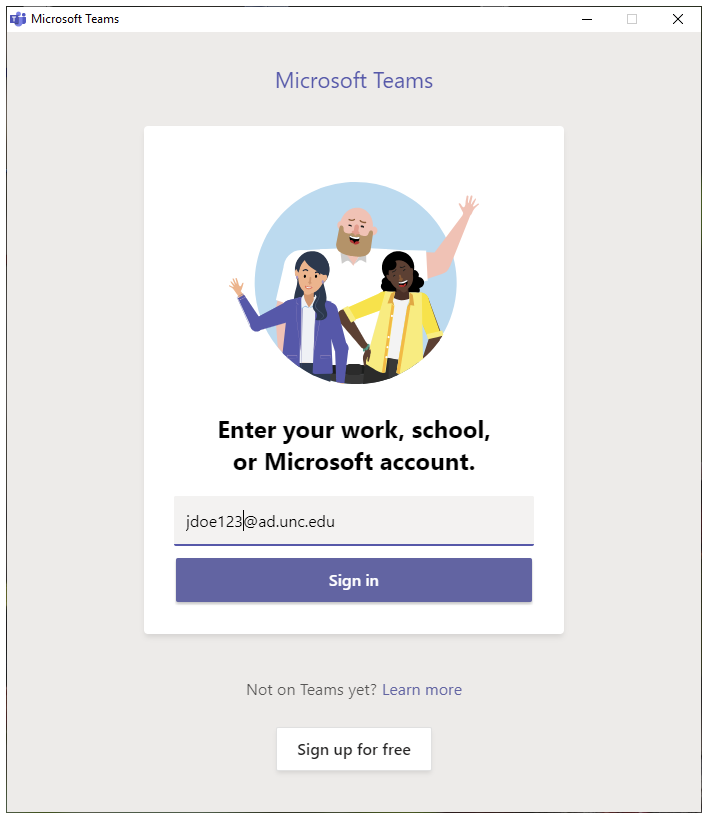
1. Confirm the Microsoft Teams popup
On some PCs using Microsoft 365 or Office 365, Microsoft Teams may start showing a login popup every time Windows boots. If you do not need it, disabling automatic startup can make the PC feel less annoying.
2. Open Task Manager from the taskbar
Right-click the taskbar and open Task Manager. This is the easiest way to reach the startup app list.
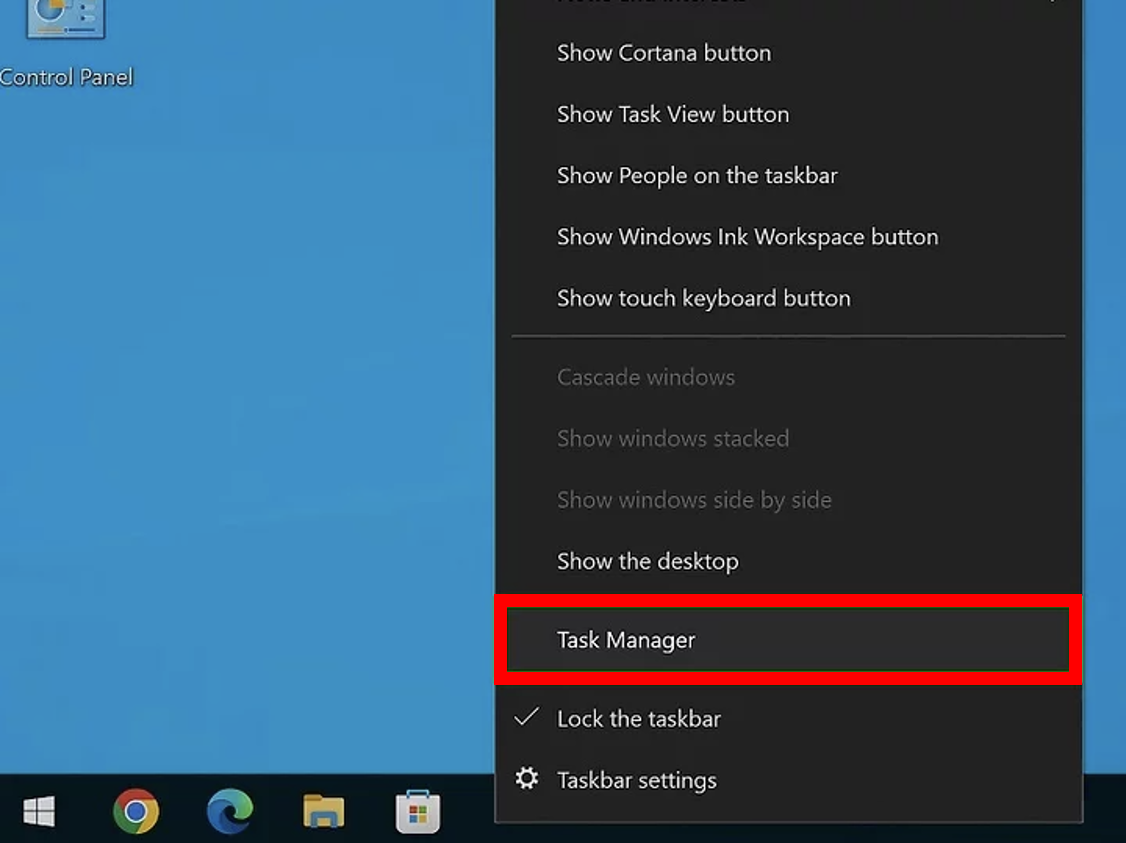
You can also press Ctrl + Shift + Esc to open Task Manager directly.
3. Disable Microsoft Teams in Startup
In Task Manager, go to the Startup tab or Startup apps section. Find Microsoft Teams, right-click it, and choose Disable.
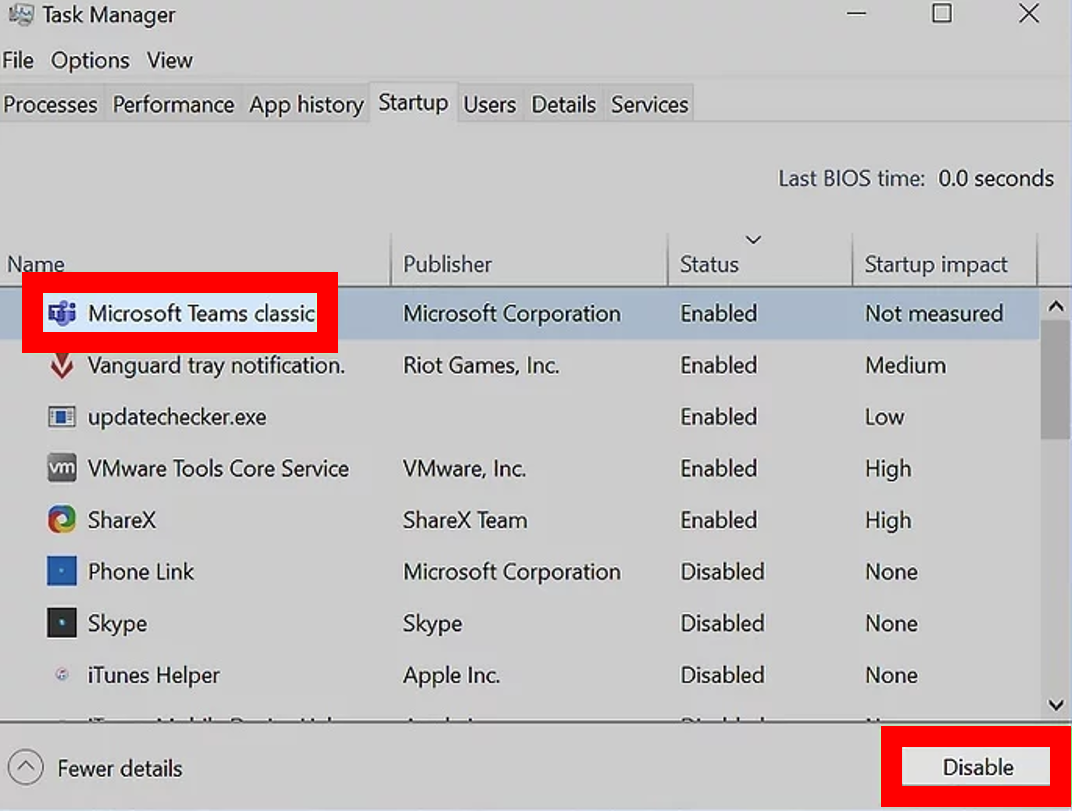
If your PC shows two Microsoft Teams entries, disable both. In many cases, that is the simplest way to stop the popup from appearing at boot.
Restart the PC and check whether the Microsoft Teams window is gone.
Common issues
Some versions of Teams also have an internal option to start automatically. Open Teams settings and check whether auto-start is still enabled there.
This can happen depending on how Microsoft 365, Office 365, or Teams updates were installed. If both are Teams-related, disabling both is usually fine.
Windows 10 and Windows 11 may label the startup area differently, but the basic process is still the same.